Sunday, February 3, 2013

How to tag friends in your timeline status

One of the most common and useful features to share on facebook is tagging friends in status, which means creating a profile link right from your post, if you still don't how can you do that, this post will help you:

How to tag your status to your friends ?

1 Simply go to your updates box, and start writing your status (ie I had a good day with..and..ect), now before you type the names of who you would like to tag, include the “@” sign with each friend.


2 As you start typing the first character of your friend's name, facebook will automatically give its search suggestions for you so you don't have to complete typing the full name.


Once you enter the tagged name the "@" symbol will disappear and will get replaced by link to your tagged friend's profile.

the result speaks for itself.


Friends tagged in your status updates will receive a notification and a timeline post linking them to your original post.

NOTE: You can also use this method to tag a facebook page, group, event or application
on your facebook status.

I hope you find this article helpful for you.

Monday, January 28, 2013

How to post an upside-down status on Facebook

Not many people know how to write a text, If you want to use this fun tool and impress your friends with it on Facebook follow these steps:

1 simply go to http://www.fliptext.org/, fliptext.org is a website that can re-write your normal writing to an upside-down.

2 Now type any text you want to convert it upside down in the upper empty box, and then click on the Flip Text button.


3 Afterthat copy/paste that upside-down text to your Facebook status box and share it. And here’s what it looks like:

as you can see now your facebook status is written upside-down.

I hope you find this trick fun for you.

Sunday, January 27, 2013

How to select or change your Facebook language


If you've ever accidentally changed your Facebook language from English to another language and got lost in translation, there are actually two options you have to get your primary language back again:

1 The first one is the easier way, simply click on the link given next, to get you back to the English language or your primary language again: Facebook Language Option, you must be logged in to have access to this page.

2 The second way is a bit complicated for you, because obviously you're in situation where you can't understand the language you're using temporarily, but still you can go to facebook.com and scroll down untill you see the Facebook © 2013, you'll find the language you're using written in its ordinary alphabetic, click on that blue writing and select your language from the list.

I hope you find this article helpful for you.

Saturday, January 26, 2013

How to create a Facebook Friends List

One of the things you should know once you become active in adding new facebook friends is how to create a facebook friends list in order to organize your friends as you like.

How to create a Facebook Friends List ?

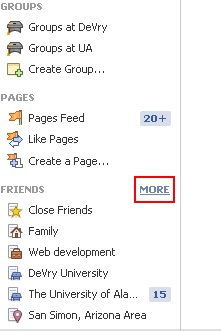
1 Well first go to your facebook Home page, look in the left sidebar of your Home page and you'll find your “FRIENDS” section, Click on “MORE”.

Home page sidebar.

2 Once you land on the Friends page, Click the “Create List” tab.


3 After clicking the “Create List” tab a small window will pop up, Now you have to give your new list a name, and start adding new friends to this list by entering their name in the empty Members box, don't forget to include the @ before entering the name of this list's memebers.


4 Click on “Create”, Now your new list has been created successfully and you can add new friend to it at any time you want.


NOTE: You can always edit your list again by clicking on the the pen icon to the right of the list name.

I hope you find this article helpful for you.

Thursday, January 24, 2013

All Facebook chat emoticons of 2013

Here's your full Facebook text emoticons list of 2013:


smile                                                                   
:-) :) :] =)

frown 
:-( :( :[ =(

tongue 
:-P :P :-p :p =P

grin 
:-D :D =D

gasp 
:-O :O :-o :o

wink 
;-) ;)

glasses 
8-) 8) B-) B)

sunglasses
8-| 8| B-| B|

grumpy 
>:( >:-(

unsure 
:/ :-/ :\ :-\
 cry 
:'(


devil 
3:) 3:-)

angel 
O:) O:-)

kiss 
:-* :*

heart 
<3

 kiki 
^_^

squint 
-_-

confused 
o.O O.o

upset 
>:O >:-O >:o >:-o

pacman 
:v

curly lips
:3

robot 
:|]

Chris Putnam
:putnam:

Shark
(^^^)

Penguin
<(")
 42
:42:

Poop
:poop:

Thumb
(Y) (y)

Tuesday, January 22, 2013

How can you post a video on facebook without breaking facebook copyrights law


Many times when you post an uploaded video on facebook and it immediately gets removed by facebook owners because it violates facebook's copyright infringements, actually facebook doesn't allow or accept its users to upload copyrighted materials such as the ones including video clips, songs, TV programs, movie scenes..ect no matter how strong is the privacy set to this video, facebook will know about it and delete it right off, why? because the american law considers that a crime of unauthorized distribution of a cpyrighted material and facebook can be sued for it, you as well will be disabled from uploading videos on facebook. therefore and before posting any of your videos on facebook here are some tips that you should consider:


If you want to include copyrighted movie scenes or a music part, just make sure that the content shouldn't pass 30 seconds.

If you want to add a full background song to your video content, consider using only edited music that's not lyriced.

Download free music that's not necessarily copyrighted elsewhere.

I hope that you find this article helpful for you.

Sunday, January 20, 2013

How to unlike many facebook pages at once

If you want to remove the like button from many Facebook pages at once, there is only one easy quick way to do that, in order to do it follow the next 6 steps:

1 Log in to your Facebook account, and go to your profile.

2 Click on the likes box at the the right side among the boxes.


3 At the top right of the likes page, click on the “Edit” button.


4 Now you pages you've already like appear in categories, to start removing the like button click on the x at the top right corner of each page box.


5 Repeat the same process to remove all other pages that you don't like anymore.

6 once you've finished unliking all pages, click on the “Done Editing”  button at the top right corner to save changes.


This is the fastest way to unlike Facebook pages and remove them from your profile, I hope you find this article helpful for you.