Showing posts with label Facebook Page. Show all posts

Friday, September 27, 2019

How to change Facebook page's name


In today's world, having a Facebook’s page may be very essential in your marketing strategy to promote your brand, product or blog and will definitely help you to get more followers on social media.

Having a good Facebook page’s name will help you to get in touch with people who already know or people who don’t know about your product.

In this blog we are going to see how we can change a Facebook page’s name on desktop in very easy and simple steps.

In order to change your Facebook page’s name, please follow the next five steps:

1 Log in to your Facebook’s account and go to your Facebook page.

2 Now you are on your Facebook page’s dashboard select the button “See more” from the list of the left side of the screen

3 Now whole list has shown up, click on the button “About”


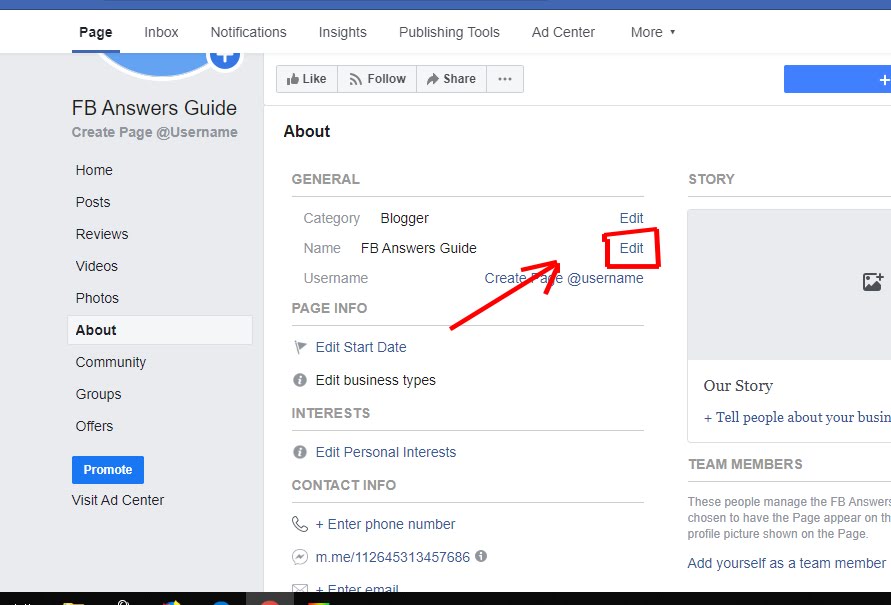
4 In the menu “General” and under “Category” click on the button “Edit” next to the “Name” section.

5 Now a new window page will show up, under the “Current Page name” click on “New Page name” in order to give your Facebook’s page a new name which helps to promote your business. In order to avoid problems, don’t use names of businesses or people who you don’t represent and make sure that your Facebook’s page name is authentic. In addition don’t use offending names because Facebook will not accept violating names. Finally you should not use the words “Facebook” or “official” in your new Facebook page’s name.


Your Facebook’s page name shouldn’t exceed 75 characters. Once you finish selecting the best name for your Facebook page, click on continue.

I hope this post has helped you to change your Facebook’s page on desktop.

Sunday, September 22, 2013

How to remove a Facebook page permanently

Deleting a Facebook page is permanent, once a Facebook page is deleted you will not be able to get it back whatsoever, so if you want to unpublish your Facebook page instead and make it invisible to the public click here. If you don't want to use your Facebook page anymore and have decided to delete it permanently. Here's a step by step guide to do delete a Facebook page below:

How to remove a Facebook page permanently:

1 First go to your Facebook page Admin Panel and click on Edit Page, then on Edit Settings as you can see in the picture.

Edit Facebook page settings.

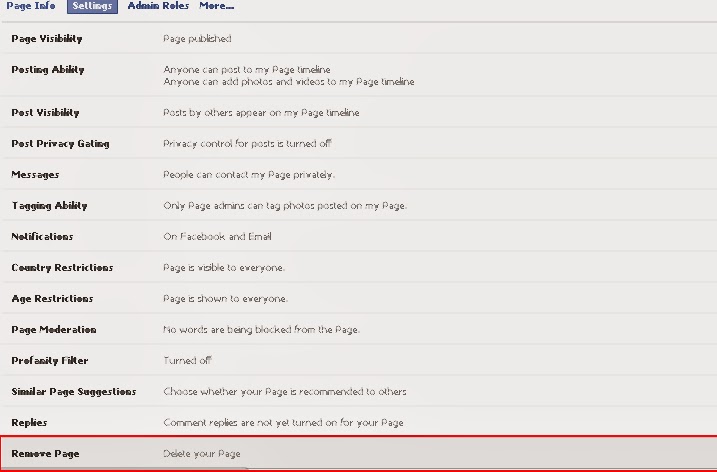
2 Once you are on the Settings page, scroll down and then click on the Remove Page option.

Remove Facebook Page option
3 A confirmation message will appear and says that you have 14 days to restore your Facebook page again before it will be deleted permanently, to continue click on Delete "your Facebook page name", and then click on Delete Page. If you want your Facebook page to be unpublished within the 14 days check on the "Unpublish this page" option; at the down corner of the pop up message, so that no one is going to be able to see your Facebook page in the 14 days.

Final confirmation message for Facebook page removal.

NOTE: If you have a Facebook page which is new or have less than 25 likes, the delete process won't take 14 days, but it will be deleted once you confirm the message and you'll never be able to get it back.

That's all, I hope you find this article helpful for you.

Sunday, June 30, 2013

How to create a Facebook Page in 4 simple steps

As you know Facebook is by far the largest social network, that's why it is important to have a Facebook page in order to reach unlimited number of fans for your business or activity, Facebook users can create their own personal pages as well. You can easily create a Facebook page; all you need is a working Facebook account that you will be using as a page admin for this business, to create your Facebook page just follow these 4 simple steps:

Step - 1 Create a new Facebook Page


The first step to create your Facebook page, is to click on this link Create a Page, or you can go to your Facebook home page, to the left sidebar you'll find a section called Pages where you can click on more, and then click on the Create a Page button to create your Facebook page.

Step - 2 Choose a category 


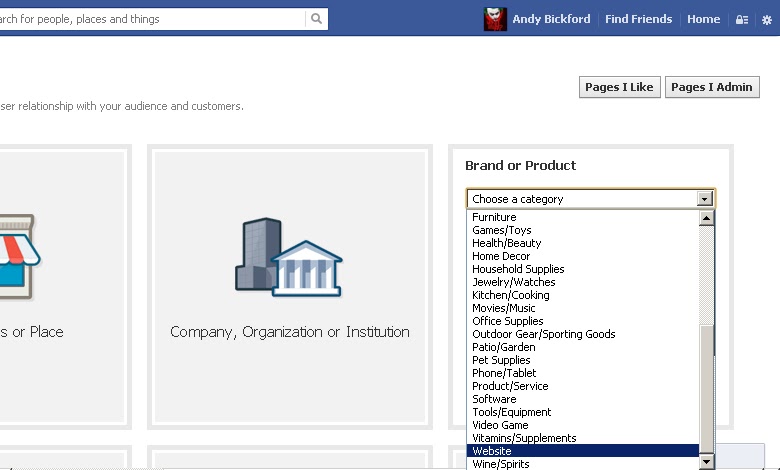
1 You can select from this page the category in which you want to label your Facebook page, there are many different categories: Local Business or Place, Company, Organization or Institution, Brand or Product, Artist, Band or Public Figure, Entertainment, Cause or Community .. in my example I will just create a Facebook page for my own blog, so I have to choose the Brand or Product category, then select website from the drop down list.


2 After that, you have to fill in basic info, select a name to your Facebook page, you'll be able to change it later as long as you have under 200 likes otherwise a Facebook page title will be permanent so make sure that you choose the appropriate one.


3 Don't forget to click on I agree to Facebook Pages Terms and then click on Get Started.

Step - 3 Getting Started

To get started with your newly created Facebook page follow the next 3 steps:

1 About: In this step you have to give more details about your Facebook page starting with a description to your own page, you can do this later if you want by clicking on Skip.


2 Profile Picture: Upload a profile picture that represents your page, it will identify your page on the fans like section and whenever you update posts or comments.


3 Reach more people: This is a suggested payment way to promote your Facebook page, just skip this step, you can come back later if you want, however there are other free ways that you can use to promote your new Facebook page, click here.


Congratulations now you have just created your own Facebook page, you need to learn more about Facebook page's management, and how to add a new admin or how to promote for your Facebook page.

Step - 4 Customize your Facebook page


1 Page Title: Every Facebook page has got an interesting title, a Facebook page title is permanent, it can be only changed or edited if you have under 200 likes for your page.

2 Page Profile Picture: It's really important to choose an appropriate profile picture for your Facebook page as it will appear in all posts, comments, and fans likes showcase.

3 Page Timeline Cover: You can use a timeline cover to attract more attention to your Facebook page, it's a header image that you can use to deliver a message for your page fans, you can find in this blog how to create your own Facebook cover.

4 Page About Section: In this section you can add a description to introduce your Facebook page to visitors and make them know more about it, you can also add a link to your site.

5 Page Updates: You can update everything you want on your Facebook page as you do with your personal Facebook account, share photos, notes, links..etc

6 Page Admin Panel: This section is for page admins, where they can see or edit everything goes with the Facebook page: messages, notifications, settings, insights..etc.

These are just basic steps to customize your Facebook page, you'll learn more about customizing a Facebook page in this blog.

You can also invite your Facebook friends to like your page by suggesting them your page. to do that go to your Facebook page and in the admin panel there is a drop down list button called Build Audience click on it and select Invite Friends, unfortunately to suggest your page for all of your friends you'll have to check every single friend individually from the friend list.

To connect with your Facebook page and browse on Facebook with it, log in with the admin Facebook account and go to the gear icon at the top right of your banner, then select "Browse as:" and click on the page's name.

That's all, I hope you find this article helpful for you.

Sunday, April 7, 2013

How to enable replies on your facebook page's comments

Since facebook has launched its new feature of replying on comments on march 2013, many facebook page owners couldn't figure out the way to enable the feature on their pages, however the reply feature on comments, is a very useful tool to keep your page's fans more interactive with each other and with you as well, you can allow your fans to interact which other, ask each other and get quick replies, this is what's all about.

How to enable replies on your facebook page's comments


Now back to our question, to enable replies on your facebook page's comments follow these simple steps:

1 First go to your page Admin Panel, click on the drop down menu from the Edit Page button.


2 Click on the Manage Permissions option at the left sidebar.


3 Scroll down the Manage Permissions edit page, until you see Replies: Allow to comments on my Page, then check that empty box.


4 Finally click on Save Changes at the top down of the page.

That's all I hope you find this article helpful for you.

Sunday, February 3, 2013

How to add a new admin to your facebook page


If you own a facebook page and you want to add new admin or more than one admin to it in order to help you managing the page or posting status, here are four steps you can add a new admin:

STEP 1: At the top right of your facebook page, click on Edit Page and select Admin Roles from the drop-down list.

STEP 2: Since you're on the Admin Roles, you can start adding admins to your facebook page, as much as you want, to add a new admin you need first to type his email in the empty field.


STEP 3: To confirm the addition click on the Save button, enter your acoount password and click on Confirm.


STEP 4: Finally and to save the the changes just click on Save., now the new admin has been successfully added, you can add other admins to your page following the same steps

NOTE: You can only add your friends or people who already liked your page as an admin.

I hope you find this article helpful for you.

How to promote for your Facebook page on Facebook for free


Nowadays some page owners would pay money to advertise their pages on Facebook, but some others prefer not pay and make their business by their own, however today i'll show you some creative ways you can use to promote for your Facebook page on Facebook:

Use comments

One the powerful tools to promote your Facebook page is to comment other similar pages on Facebook inviting people to visit yours, this can be helpful if you're targeting a certain audience for your page's content.

Deal with other pages

This one common way used to promote pages, you can start liking other popular pages and ask them to like yours back, and that's how the fans of the other pages would intend to like yours, this can be a great way to generate traffic to your page without putting so much efforts.

Tag other facebook Pages

Tagging other pages on your page update status will help you generate more visitor to your facebook page, as it will show up in other fan pages, which means that you'll redirect many fans to visit your page.

Invite your friends list

This must be of the first thing to do when creating a page on Facebook, invite your friends to like your page so that your friends will become fans of your page, once you set up your page, Facebook will recommend you to do that and your friends will receive a notification asking them to like your page.

Be creative

Try to upload funny or unique pictures on your Facebook page, if someone of your page's fans likes the picture and decides to share it on his own timeline, he or she will let his friends to know about your page and take a visit to it.

SEO

Search Engine Optimization, If you want to get your Facebook page at the top search of any search engine like Google or Yahoo, you must consider reading about SEO tricks and ways to make your Facebook page appear in the first page on any search engine.

These are all my best advices for you, I hope you find this article helpful for you.

Sunday, January 20, 2013

How to unlike many facebook pages at once

If you want to remove the like button from many Facebook pages at once, there is only one easy quick way to do that, in order to do it follow the next 6 steps:

1 Log in to your Facebook account, and go to your profile.

2 Click on the likes box at the the right side among the boxes.


3 At the top right of the likes page, click on the “Edit” button.


4 Now you pages you've already like appear in categories, to start removing the like button click on the x at the top right corner of each page box.


5 Repeat the same process to remove all other pages that you don't like anymore.

6 once you've finished unliking all pages, click on the “Done Editing”  button at the top right corner to save changes.


This is the fastest way to unlike Facebook pages and remove them from your profile, I hope you find this article helpful for you.

Saturday, January 19, 2013

Facebook Symbols List

You may want to start using text symbols on your Facebook status updates or comments, and even instant messaging, here's a list of text symbols that you can copy paste and use:


☮ ✈ ♋ ☠ ☯ ♥ ✌ ✖ ☢ ☣ ☤ ❤ ❥ ❦ ❧ ♡ ✗ ✘ ♒ Ω ♦ ♠ ♥ ♣ ♢ ♤ ♡ ♧ ✦ ♔ ♕ ♚ ♛ ★ ☆ ✮ ✯ ☾ ☽ ☼ ☀ ☁ ☂ ☃ ☺ ♪ ♫ ♬ ✄ ✂ ✆ ✉ ∞ ♂ ♀ ☿ ▲ ▼ ₪ ✓ ✔ ✕ ☥ ☦ ☧ ☨ ☩ ☪ ☫

™ © ® ℗ ¿¡ № ∃ ⊥ ∀ ☹ ∞ ⌘ 文 ⑂ ஜ ๏ ツ ッ シ Ü 

☯ ✈ ☤ ✏ ✎ ✐ ✍ ☚ ☛ ☜ ☝ ☞ ☟ ✙ ✚ ✛ ✜ ✝ ✞ ✠ ❂ ⋆ ✢ ✣ ✤ ✥ ✦ ✩ ✪ ✫ ✬ ✭ ✮ ✯ ✰ ★ ✱ ✲ ✳ ✴ ✵ ✶ ✷ ✸ ✹ ✺ ✻ ✼ ❄ ❅ ❆ ❇ ❈ ❉ ❊ ❋ ✉ ☏ ☎ ✆ ♨ ☬ ✄

 ½ ⅓ ¾ ⅔ ⅕ ⅖ ⅗ ⅘ ⅙ ⅚ ⅛ ⅜ ⅝ ⅞ 
Ⅰ Ⅱ Ⅲ Ⅳ Ⅴ Ⅵ Ⅶ Ⅷ Ⅸ Ⅹ Ⅺ Ⅻ ⅰ ⅱ ⅲ ⅳ ⅴ ⅵ ⅶ ⅷ ⅸ ⅹ 
➀ ➁ ➂ ➃ ➄ ➅ ➆ ➇ ➈ ➉ 
➊ ➋ ➌ ➍ ➎ ➏ ➐ ➑ ➒ ➓ 
ⓐ ⓑ ⓒ ⓓ ⓔ ⓕ ⓖ ⓗ ⓘ ⓙ ⓚ ⓛ ⓜ ⓝ ⓞ ⓟ ⓠ ⓡ ⓢ ⓣ ⓤ ⓥ ⓦ ⓧ ⓨ ⓩ 


✈ ★ ☀ ღ ☃ ♫ ✌ ☮ ☯ ☢ ☻ ❀ ☂ ☎
☠ ♣ ☞ ✔ ✘ ♂ ♀ ✄ ☧ ✡ ♞ ❣ ❦


╰☆╮ ✡ ❤ ♥ ❣ ❥ ❦ ❧ ღ ɞ ♡ -‘๑’- 

✾ ✿ ❀ ❁ ❃ ❋ ♪ ♫ ♩ ♬ ♭ ♮ ♯ ° ø ⊙ ☉ ❣ ✉ ✍ ✎ ✏ ✐ ☑ ☐ ☒ ␟ ␘ ❢ ➟ ➡ ➢ ➣ ➤ ➥ ➦ ➧ ➨ ➚ ➘ ➙ ➛ ➜ ➝ ➞ ➸ ♐ ➲ ➳ ➳ ➴ ➵ ➶ ➷ ➸ ➹ ➺ ➻ ➼ ➽ ← ↑ → ↓ ↔ ↕ ↖ ↗ ↘ ↙ 

Feel free to share with your friends !