
 Home (English)
 Français
Deleting a Facebook page is permanent, once a Facebook page is deleted you will not be able to get it back whatsoever, so if you want to unpublish your Facebook page instead and make it invisible to the public click here. If you don't want to use your Facebook page anymore and have decided to delete it permanently. Here's a step by step guide to do delete a Facebook page below:
How to remove a Facebook page permanently:
1 First go to your Facebook page Admin Panel and click on Edit Page, then on Edit Settings as you can see in the picture.
2 Once you are on the Settings page, scroll down and then click on the Remove Page option.
3 A confirmation message will appear and says that you have 14 days to restore your Facebook page again before it will be deleted permanently, to continue click on Delete "your Facebook page name", and then click on Delete Page. If you want your Facebook page to be unpublished within the 14 days check on the "Unpublish this page" option; at the down corner of the pop up message, so that no one is going to be able to see your Facebook page in the 14 days.
NOTE: If you have a Facebook page which is new or have less than 25 likes, the delete process won't take 14 days, but it will be deleted once you confirm the message and you'll never be able to get it back.
That's all, I hope you find this article helpful for you.
How to remove a Facebook page permanently:
1 First go to your Facebook page Admin Panel and click on Edit Page, then on Edit Settings as you can see in the picture.
 |
| Edit Facebook page settings. |
2 Once you are on the Settings page, scroll down and then click on the Remove Page option.
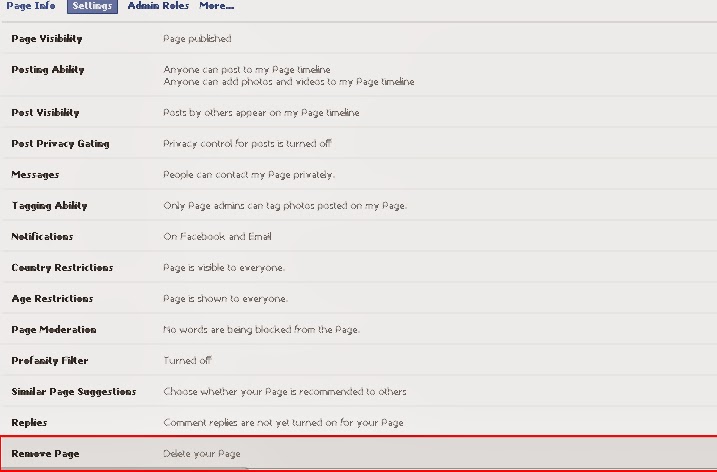 |
| Remove Facebook Page option |
 |
| Final confirmation message for Facebook page removal. |
NOTE: If you have a Facebook page which is new or have less than 25 likes, the delete process won't take 14 days, but it will be deleted once you confirm the message and you'll never be able to get it back.
That's all, I hope you find this article helpful for you.


