Sunday, August 11, 2013

How to add new Facebook Stickers to your Facebook chat window


As a new way of improving Facebook private messaging, Facebook has recently enabled chat stickers for PC or Mac devices on the web, since it was only available in some mobile devices applications, you can attach new fun Facebook stickers to your conversations just by tapping them from the smiley face on your chat window. By default you only have 2 stickers packages installed to your smiley face; the Meep stickers pack and the Pusheen stickers pack.

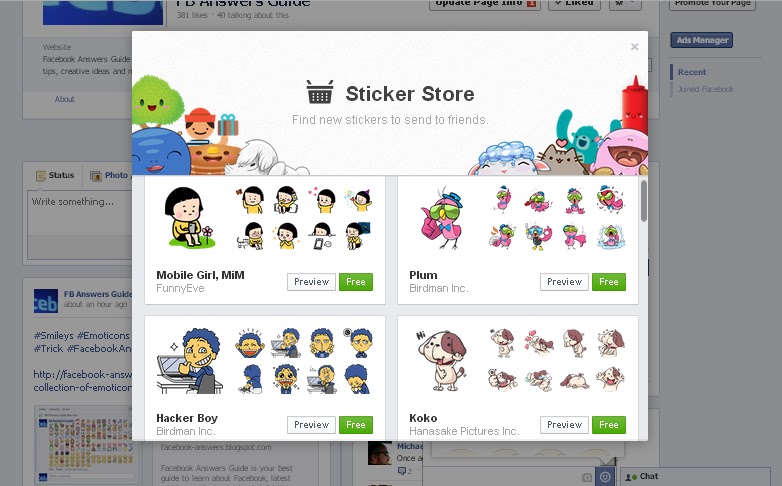
To add new Facebook chat stickers to your chat smileys bar, click on the basket in the top right to download free stickers packs from the Sticker Store, the number of packs available is increasing week by week, so far there are 24 packs to add.


Once you're on the stickers store, scroll down or up to preview or pick the new package you may want to enable for your chat conversations, to pick a stickers pack click on the green button Free, once you add the stickers pack you can always come back to find it on your chat smiley face option.


NOTE: Since you add a stickers pack to your smiley face option, it can not be removed again and you may find that annoying so you better preview packs before you select the right one you need.

Feel free to share with your friends!


Sunday, June 30, 2013

How to create a Facebook Page in 4 simple steps

As you know Facebook is by far the largest social network, that's why it is important to have a Facebook page in order to reach unlimited number of fans for your business or activity, Facebook users can create their own personal pages as well. You can easily create a Facebook page; all you need is a working Facebook account that you will be using as a page admin for this business, to create your Facebook page just follow these 4 simple steps:

Step - 1 Create a new Facebook Page


The first step to create your Facebook page, is to click on this link Create a Page, or you can go to your Facebook home page, to the left sidebar you'll find a section called Pages where you can click on more, and then click on the Create a Page button to create your Facebook page.

Step - 2 Choose a category 


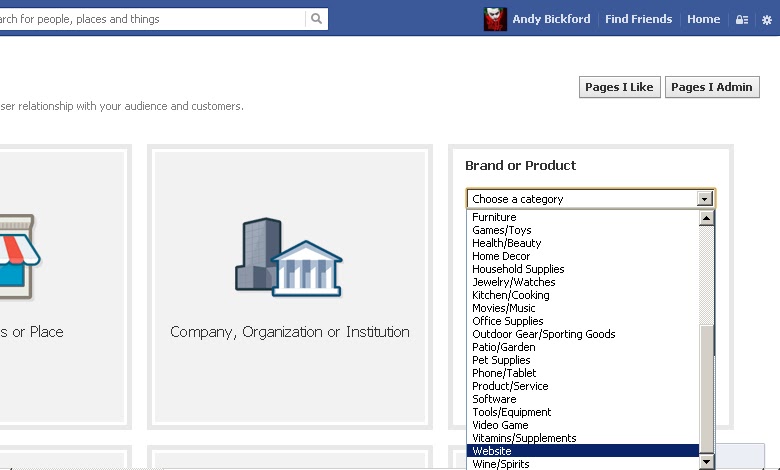
1 You can select from this page the category in which you want to label your Facebook page, there are many different categories: Local Business or Place, Company, Organization or Institution, Brand or Product, Artist, Band or Public Figure, Entertainment, Cause or Community .. in my example I will just create a Facebook page for my own blog, so I have to choose the Brand or Product category, then select website from the drop down list.


2 After that, you have to fill in basic info, select a name to your Facebook page, you'll be able to change it later as long as you have under 200 likes otherwise a Facebook page title will be permanent so make sure that you choose the appropriate one.


3 Don't forget to click on I agree to Facebook Pages Terms and then click on Get Started.

Step - 3 Getting Started

To get started with your newly created Facebook page follow the next 3 steps:

1 About: In this step you have to give more details about your Facebook page starting with a description to your own page, you can do this later if you want by clicking on Skip.


2 Profile Picture: Upload a profile picture that represents your page, it will identify your page on the fans like section and whenever you update posts or comments.


3 Reach more people: This is a suggested payment way to promote your Facebook page, just skip this step, you can come back later if you want, however there are other free ways that you can use to promote your new Facebook page, click here.


Congratulations now you have just created your own Facebook page, you need to learn more about Facebook page's management, and how to add a new admin or how to promote for your Facebook page.

Step - 4 Customize your Facebook page


1 Page Title: Every Facebook page has got an interesting title, a Facebook page title is permanent, it can be only changed or edited if you have under 200 likes for your page.

2 Page Profile Picture: It's really important to choose an appropriate profile picture for your Facebook page as it will appear in all posts, comments, and fans likes showcase.

3 Page Timeline Cover: You can use a timeline cover to attract more attention to your Facebook page, it's a header image that you can use to deliver a message for your page fans, you can find in this blog how to create your own Facebook cover.

4 Page About Section: In this section you can add a description to introduce your Facebook page to visitors and make them know more about it, you can also add a link to your site.

5 Page Updates: You can update everything you want on your Facebook page as you do with your personal Facebook account, share photos, notes, links..etc

6 Page Admin Panel: This section is for page admins, where they can see or edit everything goes with the Facebook page: messages, notifications, settings, insights..etc.

These are just basic steps to customize your Facebook page, you'll learn more about customizing a Facebook page in this blog.

You can also invite your Facebook friends to like your page by suggesting them your page. to do that go to your Facebook page and in the admin panel there is a drop down list button called Build Audience click on it and select Invite Friends, unfortunately to suggest your page for all of your friends you'll have to check every single friend individually from the friend list.

To connect with your Facebook page and browse on Facebook with it, log in with the admin Facebook account and go to the gear icon at the top right of your banner, then select "Browse as:" and click on the page's name.

That's all, I hope you find this article helpful for you.

Sunday, June 2, 2013

New Facebook update: How can you tag actions in a status


A new update on Facebook has been added few days ago, Facebook has added a new feature to update Facebook status which includes tagging actions in your update status box, much similar to tagging friends, you can tag feelings, books, movies, music, food, drinks.

How to tag actions in a status ?

1 Go to your Facebook homepage and find your update status box.

2 At right side down, click on the new smiley face.


3 From the drop down list, select the action you want to tag in your status, for example I'm going to tag a song which I'm listening right now:


You can tag an action in a status and add friends to it, as you can see in this example:


NOTE: The details you add to your posts also appear on your About page and other places on Facebook such as: movies, books, music bands...

That's all, I hope you find this article helpful for you.

Sunday, May 12, 2013

New collection of emoticons and symbols for Facebook comments

New Facebook symbols and emoticons for Facebook comments and status.

Hey everyone, I recently collected a new list of smileys and symbols to use in Facebook comments and status on my Fb Answers Guide page, To use these comment symbols and emoticons; select one of the emoticons you want to use by clicking on them, then copy/paste as much empty boxes as you want to you use.

Facebook Cloud Icon Umbrella Emoticon Facebook Sun Emoticon Broken Heart Emoticon Facebook Blue Heart Icon Green Heart Emoticon Yellow Heart Emoticon Purple Heart Emoticon Triple Heart Emoticon Stabbed Heart Cool heart icon Wrapped Heart Emoticon Sparkling Heart Icon 
Lip Mark Emoticon Lips Emoticon Emoticon in love Couple in love Star Emoticon Stars emoticon Facebook Music Note Emoticon Music Notes Emoticon Zzz Emoticon Purple Devil Emoticon Peace Fingers Emoticon Dislike Emoticon Facebook Clenched Fist Emoticon 
Muscle arm Fist Emoticon Two hands reaching up A-ok sign Open Hand Emoticon A pair of hands clapping. Finger pointing up Index finger Present emoticon Snowman Emoticon Alien Emoticon Green Monster Emoticon Party Popper 
Angel Emoticon Beer Emoticon Bell Emoticon Balloon Emoticon Fire Emoticon Facebook Thunder Emoticon Ghost Emoticon Moon Emoticon Phone Emoticon Clover Emoticon Cocktail Glass Emoticon Graduation Hat Pumpkin Emoticon 
Skull emoticon Nail Polish Emoticon Wave Emoticon Wave Emoticon Christmas Tree Emoticon Ear Emoticon Nose Emoticon Eyes Emoticon Girl with bunny ears Bouquet Emoticon TV Emoticon Hamburger Emoticon Guardsman Emoticon 
Man With Turban Santa Claus Emoticon Policeman Emoticon Construction Worker Emoticon Princess Emoticon Blonde Girl Emoticon Older Man Older woman Baby Face Boy and girl holding hands Man and woman holding hands Dancer Emoticon Strawberry Emoticon 
Orange Emoticon Red Apple Emoticon Droplets Emoticon Palm Emoticon Cactus Emoticon Maple Leaf Emoticon Fallen Leaf Emoticon Fluttering Leaf Cherry Blossom Facebook Rose Emoticon Tulip Emoticon Sunflower Emoticon Seedling Emoticon 
Hibiscus Emoticon Snake Emoticon Bug Emoticon Puppy Emoticon Teddy Bear Emoticon Mouse Emoticon Monkey Face Hamster Emoticon Wolf Emoticon Tiger Emoticon Horse face Pig Emoticon Cat Emoticon 
Bunny Emoticon Poodle Emoticon Sheep Emoticon Penguin face Koala Emoticon Cow Emoticon Wild boar Emoticon Chicken Emoticon Yellow Chick Bird Emoticon Elephant Emoticon Horse Emoticon Camel Emoticon 
Monkey Emoticon Octopus Dolphin Emoticon Whale emoticon Tropical Fish Fish Emoticon Blowfish Seashell Emoticon Frog Face Tongue out and winking Tongue Out Emoticon Facebook Blush Emoticon Winking Emoticon 
Sad Face Unamused Emoticon Emoticon Screaming In Fear Scared Emoticon Emoticon Blowing A Kiss Emoticon crying tears of joy Emoticon with eyes wide open Red Angry Emoticon Astonished Emoticon Big Grin Emoticon Dizzy Emoticon Disappointed emoticon Emoticon Shedding Tears 
Dizzy Emoticon Angry face emoticon

As you can see there are five lines of empty boxes relevant to the same emoticon shown, Just copy as many boxes as you want and paste them in your comments or status box:

How to copy/paste your desired emoticon or smiley.

Feel free to share with your friends !