Showing posts with label Facebook Profile. Show all posts

Sunday, January 20, 2013

How to delete your Facebook account permanently


Note: Deleting your Facebook account is a permanent action, and it cannot be undone. Make sure you have backed up any important data or information you want to keep before proceeding.

  1. Log in to your Facebook account: Go to Facebook and log in using your email address and password.


  1. Backup your data: Before you delete your account, you may want to download a copy of your Facebook data. This includes your posts, photos, videos, messages, and more. To do this:
    • Click the downward arrow in the upper-right corner of Facebook (on the desktop version).
    • Select "Settings & Privacy" > "Settings."
    • In the left sidebar, click "Your Facebook Information."
    • Click "Download Your Information."
    • Choose the data you want to download and set other options.
  2. Click "Create File." Facebook will notify you when your data is ready to download.


  1. Deactivate your account: If you're not ready to delete your account permanently but want to take a break from Facebook, you can deactivate it temporarily. To do this:
    • Click the downward arrow in the upper-right corner of Facebook (on the desktop version).
    • Select "Settings & Privacy" > "Settings."
    • In the left sidebar, click "Your Facebook Information."
    • Click "Deactivation and Deletion."
    • Choose "Deactivate Account" and follow the on-screen instructions.


  1. Delete your account: If you're sure you want to permanently delete your Facebook account, you can initiate the process as follows:
    • Click the downward arrow in the upper-right corner of Facebook (on the desktop version).
    • Select "Settings & Privacy" > "Settings."
    • In the left sidebar, click "Your Facebook Information."
    • Click "Deactivation and Deletion."
    • Choose "Delete Account" and follow the on-screen instructions.


Facebook will ask you to confirm your decision and may require you to enter your password. After confirming, your account will be deactivated for a few days before it is permanently deleted. During this period, you can cancel the deletion request by logging in to your account.

Remember that once your account is deleted, you won't be able to retrieve any of your data, and your Facebook profile will be gone permanently. Make sure you've backed up any important information you want to keep and that you're certain about your decision before proceeding.


I hope you find this article helpful for you.

Tuesday, January 1, 2013

Editing your Facebook Profile


As you start connecting on Facebook for the first time, you must start with building your own Facebook Profile that allows your friends in real life to find you and connect with you on Facebook, your Facebook profile must include different informations about you, so while filling out your personal informations you must be careful about which personal informations you want to share and which not, you must also remember that you need to modify your privacy controls for some of your private informations in order to secure yourself from any misuse.

Editing Your Profile

Go to facebook.com and log in with the registered e-mail and password. 

To start editing your profile go to your Profile page and click on the left box About link under your profile picture, or click on Edit Profile button back out on the Welcome page.

Info page will show up on your screen, where you should edit your personal informations by clicking on Edit on one of the sections displayed (while editing the informations you can leave any of the fields blank as you want).

Work and Education

Living

Relationship and Family

About You

Favorite Quotations

Basic Info

Contact Info


Work and Education:

This section enables you to add more details about your occupation, graduation, class year..ect, When you first created your account you may have added your Work and Education informations, but if you skipped that step at the begginng, you can edit this section now by clicking on Edit at the top side of this box's corner.


Basic Information:

This section includes your basic informations such as your gender, birthday, relationship status..

  • Sex: From the drop-down list you choose whether you're male or female.
  • Birthday: If you accidentally gave Facebook the wrong date through your sign up process, you can change that here, and if you don't want to display your whole birthday, you can either select from the drop-down-list: “Show only month & day” or “Don’t show my birthday”.
  • Interested In: Check on one of the two boxes men or women, or both of them.
  • Languages: This will make it easier for people to contact you in different languages that you speak, for example: American English, Spanish.. ect.
  • Political views: Share your political opinion by indicating your best party, candidate, organization..ect, (you can add a description in which you explain more about your views). 
  • Religious Views: If you want to share a religious view, then start typing in the empty field and Facebook will give you suggestions you may choose, (you can add a description in which you explain more about your views). 


 Living:

  • Current City: Adding this piece of information can help your neighbors and friends find you.
  • Hometown: Adding this piece of information can help you find your old pals.


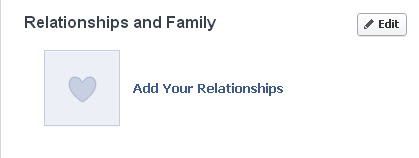
Relationships and Family:


  • Family Members: Here you can list any family member who's on Facebook by typing his or her name and then select a relativity from the drop-down list: Father, Oncle, brother ..ect, you can add as many people as you want by clicking on “Add another family member”.
  • Relationship Status: You can select any of the options from the drop-down list: married, single, you can also add your partner's name in the empty box, for example: married to.. in relationship with.. ,You can also use this option to mention your availability or unavailability for a new relationship.


About You:

In this empty text box you are free to speak more about yourself sharing your ideas and expressing your views about your life, beliefs, projects, things you wanna do..ect.


Contact Info: 

This is where you can keep in touch with your friends outside the social network, some these informations are not required by adding the contact informations below:


  • Emails: Click on the "Add / Remove Emails" link to add your e-mail address and to contact your Facebook friends via e-mail, or delete your previous e-mail address.
  • Mobile Phones/Other Phones: I don't recommend people to use their own number-phones on a Facebook profile, unless you want to set privacy settings to hide them from everyone by choosing Only Me or Personalize.
  • IM Screen Names: Add any messaging program address such as instant messaging (AIM, AOL) or MSN and Skype address so your friend will be able to contact you later without Facebook.
  • Address, City/Town, Zip, Neighborhood: You probably wouldn't like to share these specific details which includes your private residence and location on your Facebook profile.
  • Website: You can share as many Websites as you want with your friends by filling the empty box with your website URL.


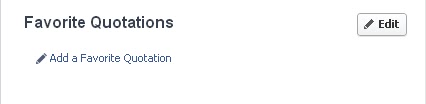
Favorite Quotations: 

Here you can add some inspiring Quotations that you'd like to share with you friends: poems, song lyrics.. ect.

Once you've finished filling the fields, click Save to save the perosnal informations or you can delete the changes by clicking on Cancel. If you want to make sure that your changes were fully saved on your profile click on View My Profile button.

Now you've built your first Facebook profile that will help your friends to find and connect with you, remember that you can always change or modify these personal data by clicking the Edit button at any time you want.

That's all, I hope you find this article helpful for you.

Sunday, June 24, 2012

Create a Facebook account in 5 steps !


If you're new to Facebook this post will be your first step to the social network, creating a facebook account is as simple as drinking water and it is completely free, all you need is a working e-mail address, and in condition of being at the age of 13 years old or more. in order to sign up you should follow these 5 simple steps:

First of all go to facebook main page www.facebook.com

1 Now that you are on the facebook main page, what you have to do is filling out the empty fields for registration like this:


  • First Name: Enter your first name (You have to use your real name, it helps you find friends you already know).
  • Last Name: Enter your last name.
  • Your email: Enter your e-mail address(Confirmation message link send to this e-mail).
  • Re-enter Email: Enter your email again.
  • New Password: Enter a new password for your Facebook account(Make up a six-character or longer, you can use numbers, letters, punctuation and make sure that your password will be easy to remember when you log in later).
  • Click I am field to select your gender from the box.
  • Birthday: Enter your birthday (You can hide your birthday from your friends).
  • Complete your registration process by typing in the words shown on the screen for the security check(If you couldn't read the wavy words, you can change the words to a new set).
Then click on "Sign Up" button.

NOTE: You can edit and change your profile informations later if you want.

2 When you are done filling out your personal informations, you need to confirm your e-mail address go and check your e-mail inbox and click on the confirmation code link sent by Facebook to finish your registration process.


Congratulations, now you become a member of the largest social network!

Set up your account


When you finish creating a new account, first you'll be redirected to Find Friends page that allows you to research for existing friends on Facebook using your email contacts list, you can just click the Skip this step if you want to go back to it later.

3 Now you will have to add Profile Informations about your high school, college, university or employer, so fill out the fields and click on Save & Continue or you can skip this step and move on.


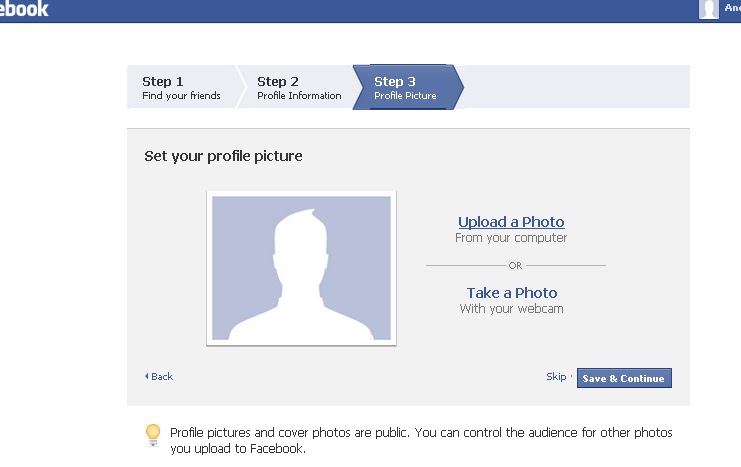
4 Finally add a profile picture to your personal account by clicking on Upload to select a picture from your computer and if your computer has a web-cam, you can click Take a Photo and use a new picture of you, when you're finished uploading your picture, click Save & Continue, you can also save this task for later by clicking on Skip this step.


Now that your account is ready to use, you can log in to it by typing your e-mail address and password at the top fields of the facebook.com main page, and if you want to log out from your account, click on Account from the menu banner and then click on Logout.


As you become active on Facebook you can start editing and customizing your profile at any time, adding friends you already know, updating status and pictures and so on, in order to improve your skills using facebook and secure your network.

Editing your facebook profile