Sunday, May 12, 2013

New collection of emoticons and symbols for Facebook comments

New Facebook symbols and emoticons for Facebook comments and status.

Hey everyone, I recently collected a new list of smileys and symbols to use in Facebook comments and status on my Fb Answers Guide page, To use these comment symbols and emoticons; select one of the emoticons you want to use by clicking on them, then copy/paste as much empty boxes as you want to you use.

Facebook Cloud Icon Umbrella Emoticon Facebook Sun Emoticon Broken Heart Emoticon Facebook Blue Heart Icon Green Heart Emoticon Yellow Heart Emoticon Purple Heart Emoticon Triple Heart Emoticon Stabbed Heart Cool heart icon Wrapped Heart Emoticon Sparkling Heart Icon 
Lip Mark Emoticon Lips Emoticon Emoticon in love Couple in love Star Emoticon Stars emoticon Facebook Music Note Emoticon Music Notes Emoticon Zzz Emoticon Purple Devil Emoticon Peace Fingers Emoticon Dislike Emoticon Facebook Clenched Fist Emoticon 
Muscle arm Fist Emoticon Two hands reaching up A-ok sign Open Hand Emoticon A pair of hands clapping. Finger pointing up Index finger Present emoticon Snowman Emoticon Alien Emoticon Green Monster Emoticon Party Popper 
Angel Emoticon Beer Emoticon Bell Emoticon Balloon Emoticon Fire Emoticon Facebook Thunder Emoticon Ghost Emoticon Moon Emoticon Phone Emoticon Clover Emoticon Cocktail Glass Emoticon Graduation Hat Pumpkin Emoticon 
Skull emoticon Nail Polish Emoticon Wave Emoticon Wave Emoticon Christmas Tree Emoticon Ear Emoticon Nose Emoticon Eyes Emoticon Girl with bunny ears Bouquet Emoticon TV Emoticon Hamburger Emoticon Guardsman Emoticon 
Man With Turban Santa Claus Emoticon Policeman Emoticon Construction Worker Emoticon Princess Emoticon Blonde Girl Emoticon Older Man Older woman Baby Face Boy and girl holding hands Man and woman holding hands Dancer Emoticon Strawberry Emoticon 
Orange Emoticon Red Apple Emoticon Droplets Emoticon Palm Emoticon Cactus Emoticon Maple Leaf Emoticon Fallen Leaf Emoticon Fluttering Leaf Cherry Blossom Facebook Rose Emoticon Tulip Emoticon Sunflower Emoticon Seedling Emoticon 
Hibiscus Emoticon Snake Emoticon Bug Emoticon Puppy Emoticon Teddy Bear Emoticon Mouse Emoticon Monkey Face Hamster Emoticon Wolf Emoticon Tiger Emoticon Horse face Pig Emoticon Cat Emoticon 
Bunny Emoticon Poodle Emoticon Sheep Emoticon Penguin face Koala Emoticon Cow Emoticon Wild boar Emoticon Chicken Emoticon Yellow Chick Bird Emoticon Elephant Emoticon Horse Emoticon Camel Emoticon 
Monkey Emoticon Octopus Dolphin Emoticon Whale emoticon Tropical Fish Fish Emoticon Blowfish Seashell Emoticon Frog Face Tongue out and winking Tongue Out Emoticon Facebook Blush Emoticon Winking Emoticon 
Sad Face Unamused Emoticon Emoticon Screaming In Fear Scared Emoticon Emoticon Blowing A Kiss Emoticon crying tears of joy Emoticon with eyes wide open Red Angry Emoticon Astonished Emoticon Big Grin Emoticon Dizzy Emoticon Disappointed emoticon Emoticon Shedding Tears 
Dizzy Emoticon Angry face emoticon

As you can see there are five lines of empty boxes relevant to the same emoticon shown, Just copy as many boxes as you want and paste them in your comments or status box:

How to copy/paste your desired emoticon or smiley.

Feel free to share with your friends !

Sunday, April 14, 2013

How can you find and cancel all friends requests you've sent on facebook at once


It's quiet difficult to find again all friends requests that you've sent to people on facebook, facebook can block your Add Friend option because of the several requests you've already sent to people on facebook without at least knowing them, in that case you'll have to find each individual friend request and then cancel it, but to find all friends requests you've already sent them to people on facebook and cancel them at once, follow the next steps:

1 First log in to your Facebook account, and click on the drop down arrow at the top right of the screen.


2 Select Activity Log from the drop down list.


3 Once you are on the Activity Log page, from the left side-bar select more under comments section.

4 Now more options appear on the sidebar click on Friends, then click on Sent friend requests to view all the sent friend requests.


5 Finally, on this page you will find all sent friend requests, all you have to do is to put your Mouse on the friend's name, then click on Sent friend request and select cancel friend request.

That's all, I hope you find this article helpful for you.

Sunday, April 7, 2013

How to enable replies on your facebook page's comments

Since facebook has launched its new feature of replying on comments on march 2013, many facebook page owners couldn't figure out the way to enable the feature on their pages, however the reply feature on comments, is a very useful tool to keep your page's fans more interactive with each other and with you as well, you can allow your fans to interact which other, ask each other and get quick replies, this is what's all about.

How to enable replies on your facebook page's comments


Now back to our question, to enable replies on your facebook page's comments follow these simple steps:

1 First go to your page Admin Panel, click on the drop down menu from the Edit Page button.


2 Click on the Manage Permissions option at the left sidebar.


3 Scroll down the Manage Permissions edit page, until you see Replies: Allow to comments on my Page, then check that empty box.


4 Finally click on Save Changes at the top down of the page.

That's all I hope you find this article helpful for you.

Sunday, March 31, 2013

How to share funny pictures on facebook from 9GAG


9GAG is a facebook application that has over 5 million active users on facebook, it enables you to share daily updated funny pictures with your friends.

To start sharing funny pictures from 9GAG to your facebook timeline, First go to 9gag.com homepage and log in with your facebook account, since you're on the 9gag homepage you'll find dozens of funny pictures to share on your facebook timeline, you just have to choose which one you find funny and the one will make your friends laugh about it.

To share any picture click on the facebook Share button at the right side of any picture.


And to search for specific funny pictures, click on the search bar and then type what you are looking for example: Babies..


As you can see, hundreds of funny pictures will show up.


That's all, I hope you find this article helpful for you.


Sunday, March 24, 2013

How to stop receiving notifications from Facebook to your Email


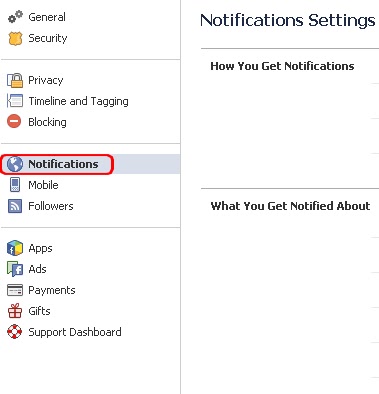
If you want to stop receiving all kinds of notifications coming from your facebook account to your email, just follow the next 4 steps:

1 First go to your Account Settings page.


2 From the left sidebar choose Notifications.


3 Once you're on the notifications settings page, click on Edit at the top right of the Email tab line.


4 To stop receiving notifications to your email, select only notifications about your account, security and privacy, And then click on Close


Now you'll only get notified from facebook about your account security and privacy, that's all, I hope you find this article helpful for you.

Saturday, March 9, 2013

Post your status from iPhone, iPod, Blackberry with this facebook fun trick


Hi, back again to facebook tricks, this is another trick in which you can update status using PostedVia website, so that can change your status posting device, like you can update status from your computer and post it as if it was posted from iPhone 5 or any other device, to do this follow the next steps:

1 First go to PostedVia home page.

2 Choose a device from the drop-down list next to the green button, you can select one device from devices available: iPhone 5, iPod, Blackberry...


3 Write whatever status you want to update, and then clcik on Share.

Update your facebook status.


4 As you can see now the result, my status was posted via iPhone 5.

Status posted via iPhone 5.

I hope you find this article helpful for you.

Sunday, February 24, 2013

How to get notified without opening a facebook window for Chrome

Now you can browse webpages using the google chrome browser and still get notified from your facebook account, you don't need to open up a facebook window in order to receive your notifications, just make sure that you're logged and you'll get notified right from the extension icon added to your chrome browser.

How to download the extension ?

Facebook Notifications is a famous extension used by 1 million and half users, it's one of the top rated extensions on the google webstore, to download the extension click on the next direct link to the extension Facebook Notifications.


Once you're on the extension download page; click on Add To Chrome at the right side of the page, confirm that you want to use the extension and click on ADD.

Now the extension is added to your chrome browser, you'll notice that a blue icon has been added to your browser toolbar, you'll get notifications right from that icon without opening a window for facebook, but make sure that you're logged in to your facebook account.

A facebook notification.

As you can see in the picture below, I can check my facebook notifications from the extension icon when I'm on a google search page:

You can see your facebook notifications right from the extension icon.
This extension is recommended for busy people who can not check their facebook account while surfing on the web.

I hope you find this article helpful for you.